How to Set Up a Slack Webhook for DetectZeStack Tech Change Alerts
Email alerts work, but Slack alerts go where your team already is. When a competitor swaps their framework, drops their CDN, or adds a new analytics vendor, you want that signal in the channel where the conversation is going to happen anyway — not in an inbox someone might check tomorrow.
DetectZeStack's tech change alerts (Watches) let you paste a Slack incoming-webhook URL into any watch on the Ultra ($29/mo) plan or higher. Below is the three-step setup, end to end.
Prerequisite: a Slack workspace where you can install apps (you need to be a member with permission to install integrations). Setup takes about five minutes.
Step 1: Create a Slack app
Go to api.slack.com/apps and click Create New App. Pick From scratch. Name it anything you'll recognize later — DetectZeStack Alerts is a fine default — and choose your workspace from the dropdown.
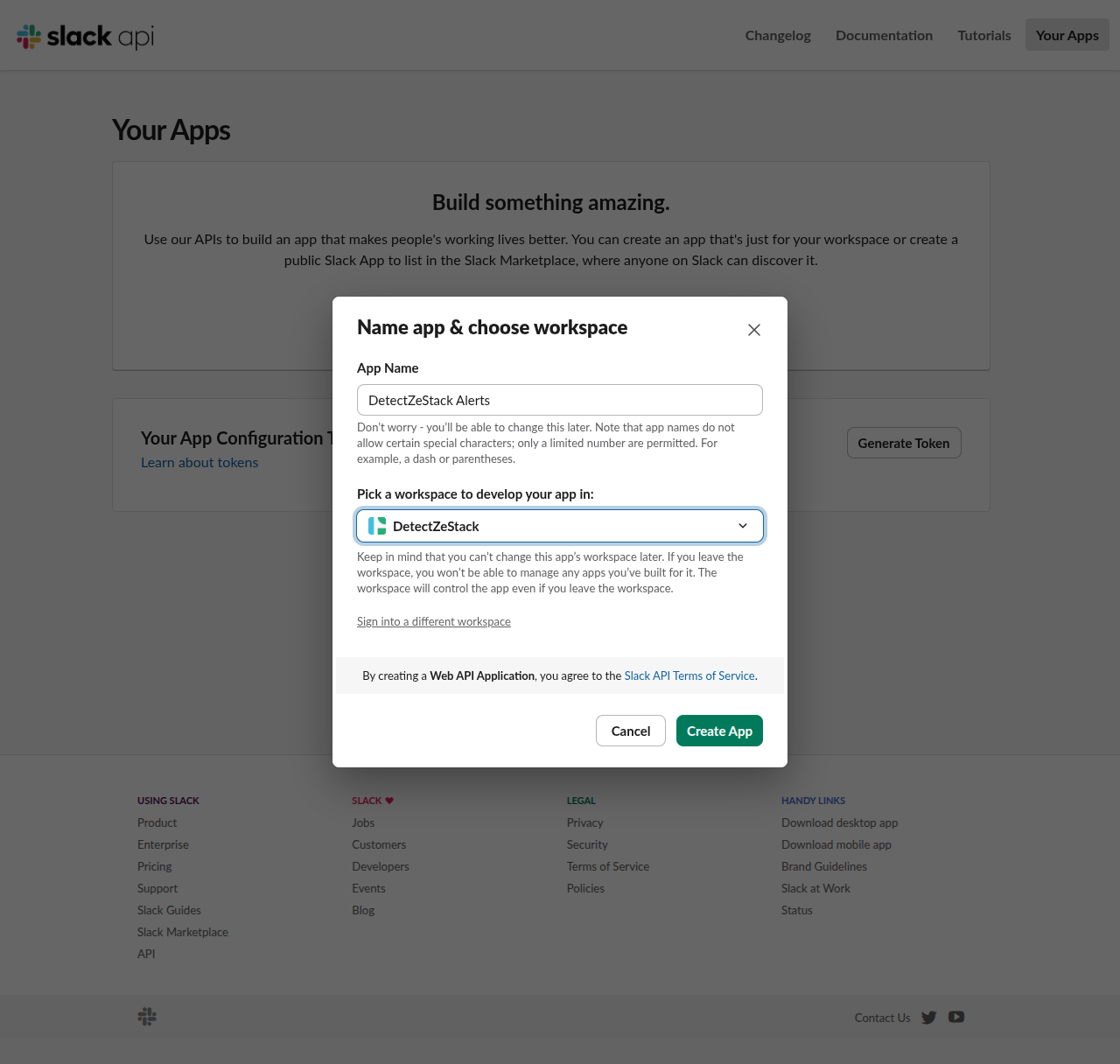
Click Create App. Slack drops you on the app's Basic Information page.
Step 2: Enable Incoming Webhooks
In the left sidebar under Features, click Incoming Webhooks. At the top of the page, flip the Activate Incoming Webhooks toggle to On.
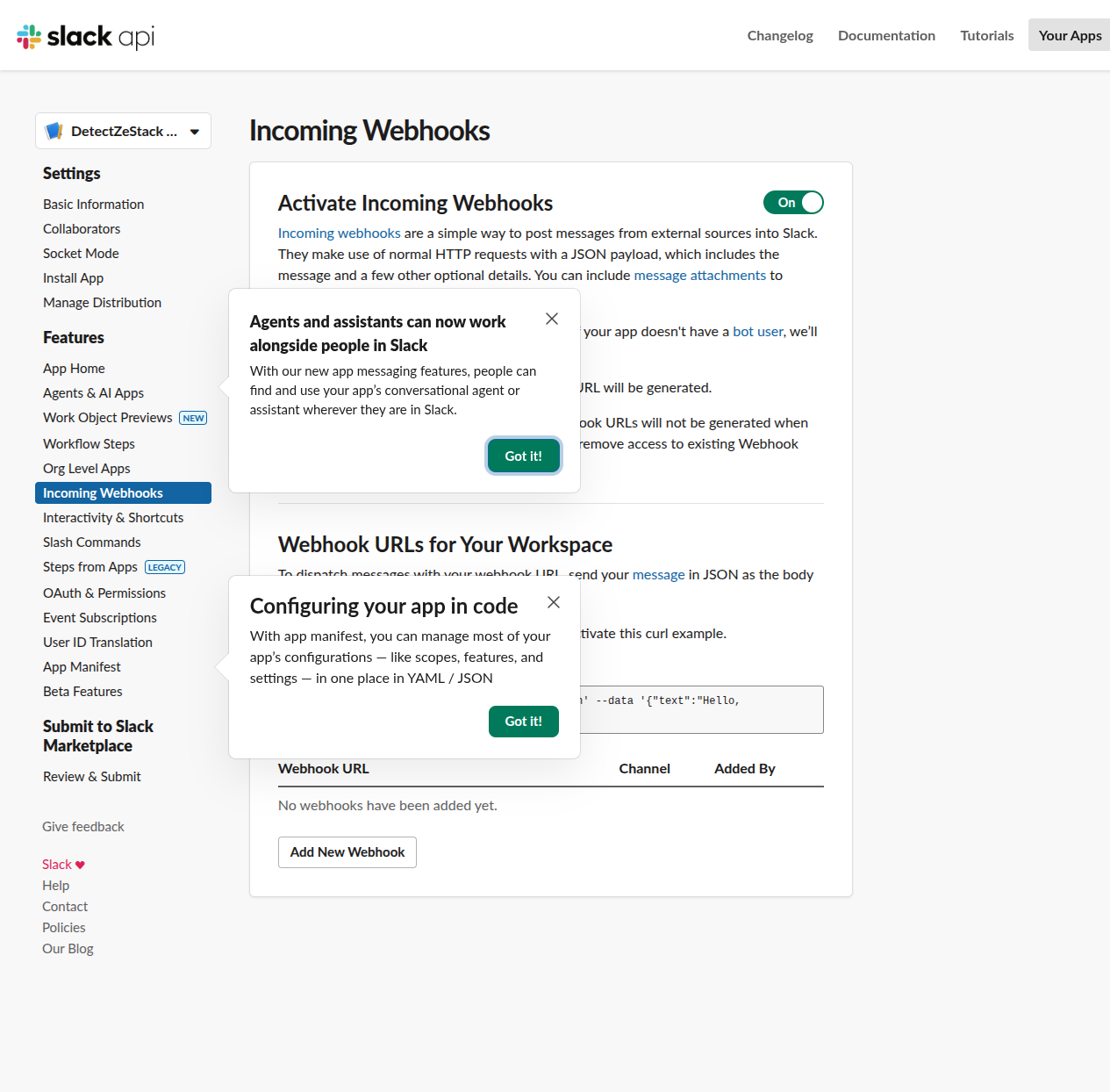
Scroll to the bottom of the page and click Add New Webhook to Workspace.
Step 3: Pick a channel and copy the URL
Slack will ask which channel the app should post to. Pick the channel where you want tech-change alerts to land — for most teams that's #competitive-intel, #growth, or a dedicated #tech-watch channel.
Click Allow. Slack creates the webhook and drops you back on the Incoming Webhooks page with a freshly minted URL.
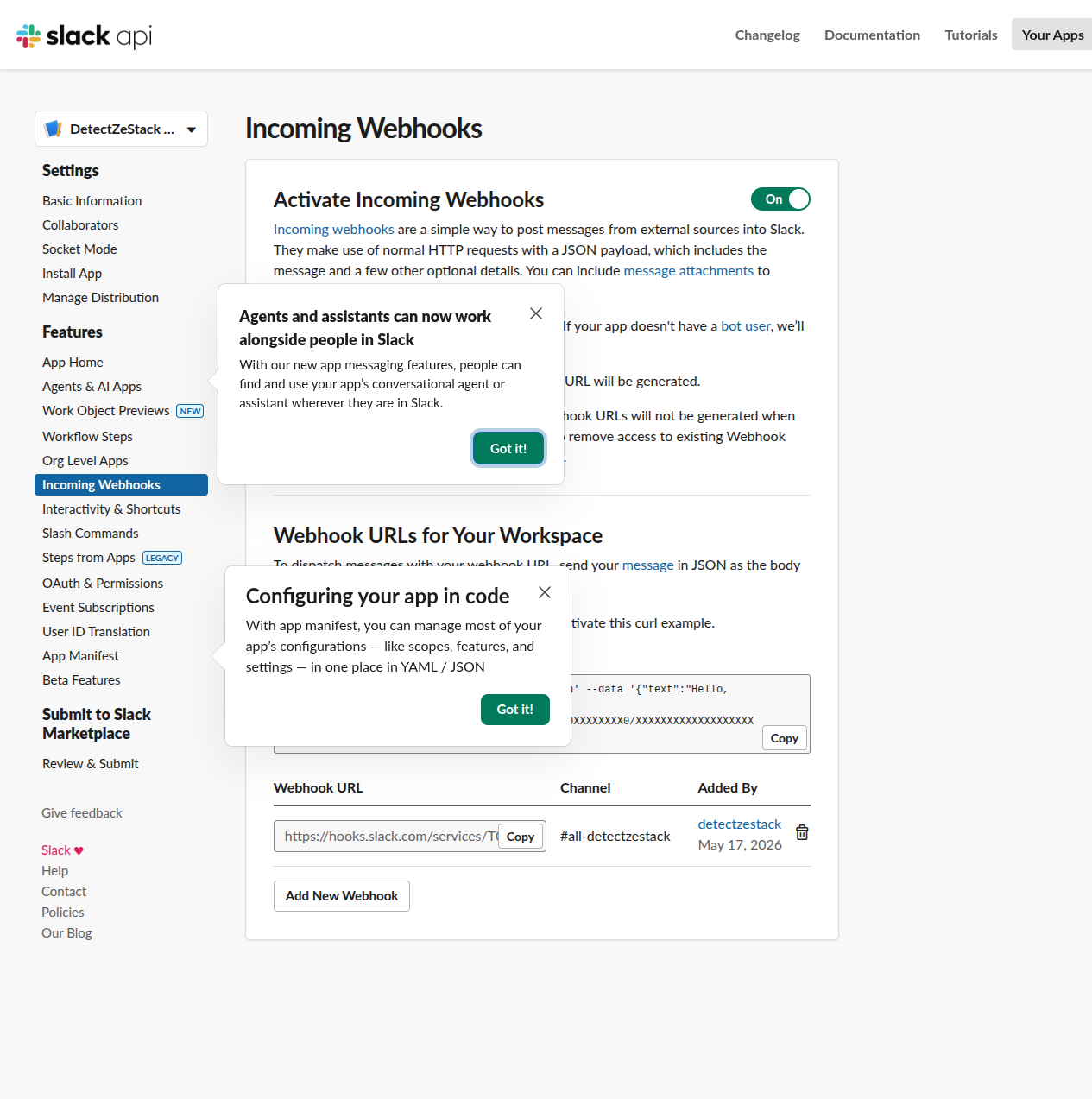
Click the Copy button next to the URL. It looks like:
https://hooks.slack.com/services/T0XXXXXXXXX/B0XXXXXXXXX/XXXXXXXXXXXXXXXXXXXXXXXXStep 4: Paste it into DetectZeStack
Open your DetectZeStack dashboard. In the Tech change alerts card, paste the URL into the Slack webhook URL field on a new watch and click Watch domain:
Domain:            stripe.com
Cadence:           daily
Slack webhook URL: https://hooks.slack.com/services/T0.../B0.../...
Save the watch. The next time DetectZeStack detects a change on that domain — a new framework, a CDN swap, a removed analytics provider — you'll get a message in the channel you picked.
Want to test it first? Add a watch on a domain you know is about to change (e.g. your own staging site before a deploy). Or pick a high-traffic site that ships frequently. Daily-cadence watches scan once a day, so the first scan happens within 24 hours of saving.
Troubleshooting
I'm not getting Slack alerts
- Check the webhook URL. A typo in the trailing token will silently fail every post. Re-copy it from api.slack.com/apps → your app → Incoming Webhooks.
- Check the channel. If you picked a private channel, the app needs to be added to that channel. Try posting to a public channel first to isolate.
- Check that the watch is active and on the right cadence. Daily watches scan once per 24h; weekly watches scan once per 7d.
- Check
/dashboardfor failure counters. DetectZeStack tracks consecutive Slack delivery failures per watch and auto-disables the Slack channel after 3 strikes (you'll still get email).
I'm getting 403 / 404 from Slack
Someone in your workspace revoked the app, or you deleted the channel. Recreate the webhook (Add New Webhook to Workspace) and paste the new URL into the watch. The old URL is dead and won't reactivate.
Can I send alerts to multiple Slack channels?
Yes — create one watch per channel. Each watch gets its own webhook URL. Practical pattern: split competitor watches across #sales-intel and #product-intel channels by who needs to see which signal.
Plan requirements
Slack delivery is included on the Ultra ($29/mo) and Mega ($79/mo) plans. Pro ($9/mo) and the free tier are email-only. Direct customers can manage their plan from the pricing page; RapidAPI subscribers can upgrade from the RapidAPI plan page.